 MAKER MOSAIC
Guides › Print a poster at home
How to Print a Poster at Home for Free
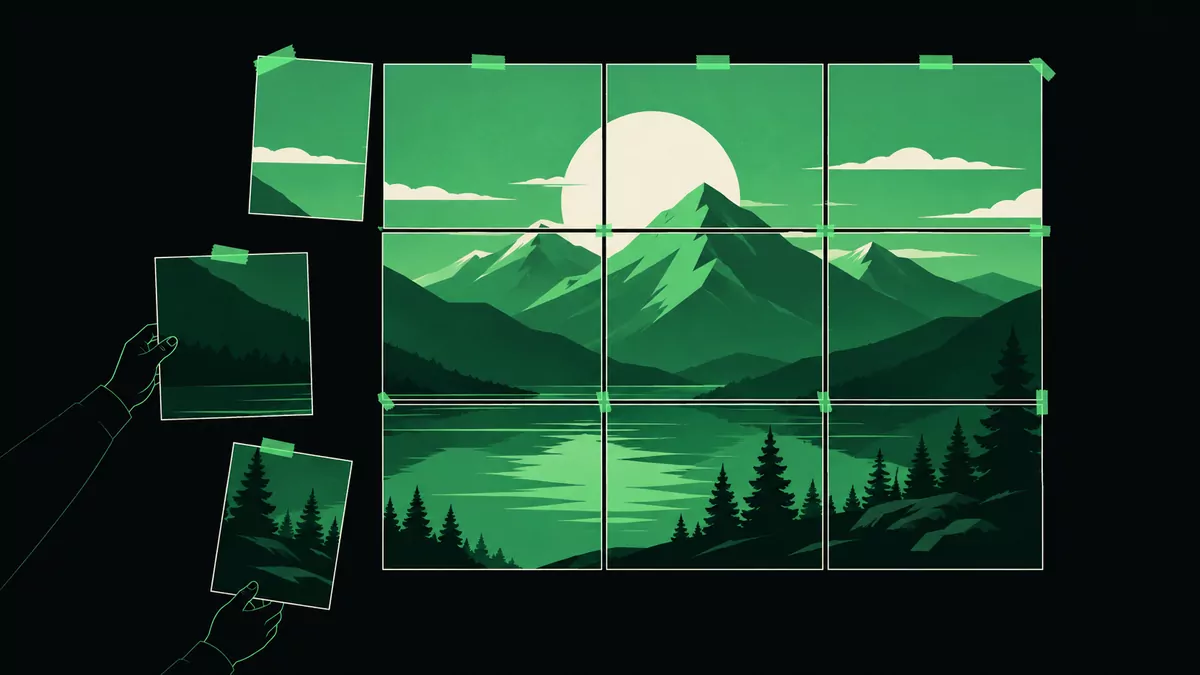
You don't need a large-format printer to make a big poster. By tiling an image across several sheets of ordinary paper and taping them together, any home printer becomes a poster printer — for free.
What you'll need
- The image you want to enlarge (a photo, artwork, or design).
- A regular inkjet or laser printer and paper (Letter, A4, or A3).
- Scissors or a craft knife, and tape or glue.
- Maker Mosaic — a free, in-browser tool that does the tiling. Nothing is uploaded; it all runs on your device.
Step by step
- Upload your image. Open Maker Mosaic and drop in your file.
- Decide how big the poster should be. Use the Measure tool to draw a line across something of known length in the image, then type its real size. That sets the scale for the whole print.
- Choose your paper. Select Letter, A4, or A3 and portrait or landscape. The page count updates live so you can see exactly how many sheets it will take.
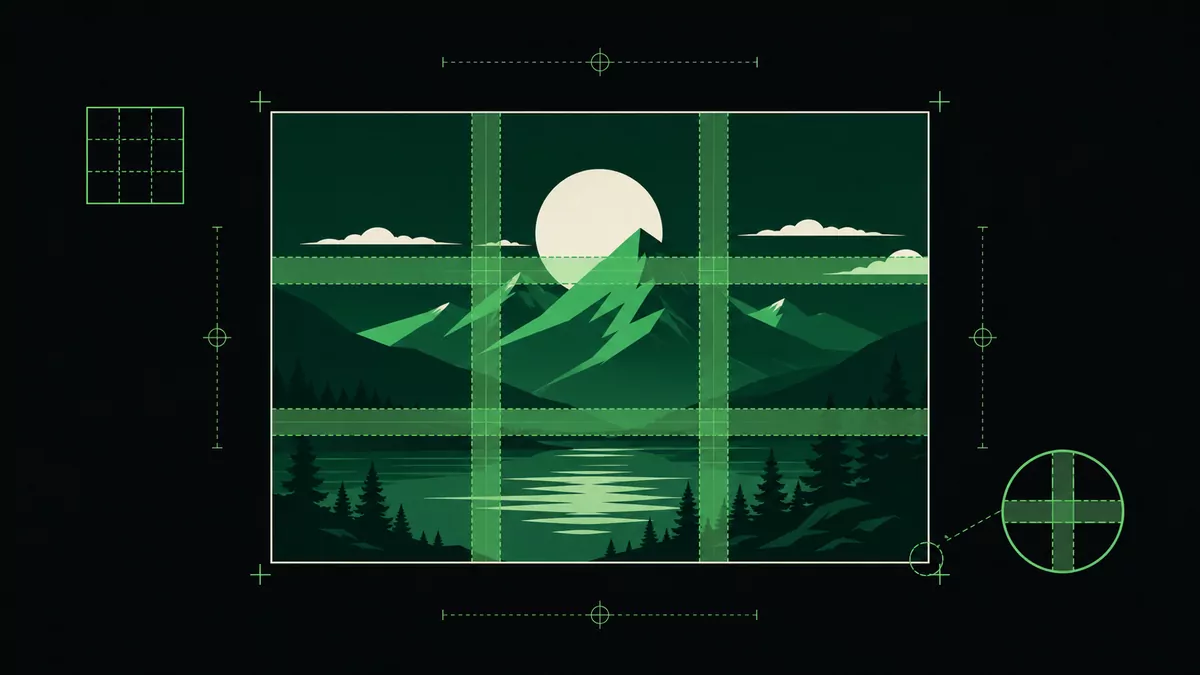
- Add an overlap margin. A 10 mm overlap gives you a strip of duplicated image on each edge to line up and trim — this is what makes the seams disappear.
- Export. Download a single multi-page PDF or a ZIP of PNG pages.
- Print at 100%. In your printer dialog, turn off "Fit to page" and print at actual size — this is critical for the scale to be correct.
- Assemble. Trim the overlap on each sheet, then line up the pages and tape or glue them together.
Tips for a clean result
- Always print at 100% / actual size. "Fit to page" silently rescales and ruins the dimensions.
- Use a higher DPI for detail. 300 DPI looks crisp up close; 150 is fine for posters viewed from a distance.
- Trim only one overlapping edge per seam so pages butt together cleanly without a double border.
- Mount on foam board for a flat, durable finish.
FAQ
Is it really free?
Yes. Maker Mosaic is free and ad-supported, and your images never leave your browser.
How big can the poster be?
As big as you like — the tool just adds more pages. A wall-sized print might be 20+ sheets.
Can I export a PDF?
Yes, you can export a single multi-page PDF or a ZIP of PNG pages.