 MAKER MOSAIC
Guides › Print an image across multiple pages
How to Print an Image Across Multiple Pages
Need to print an image bigger than one sheet of paper? Maker Mosaic splits a picture across multiple pages so you can print each one on a regular home printer and tape them together into a single large print — no Photoshop, no special software, and nothing to install.
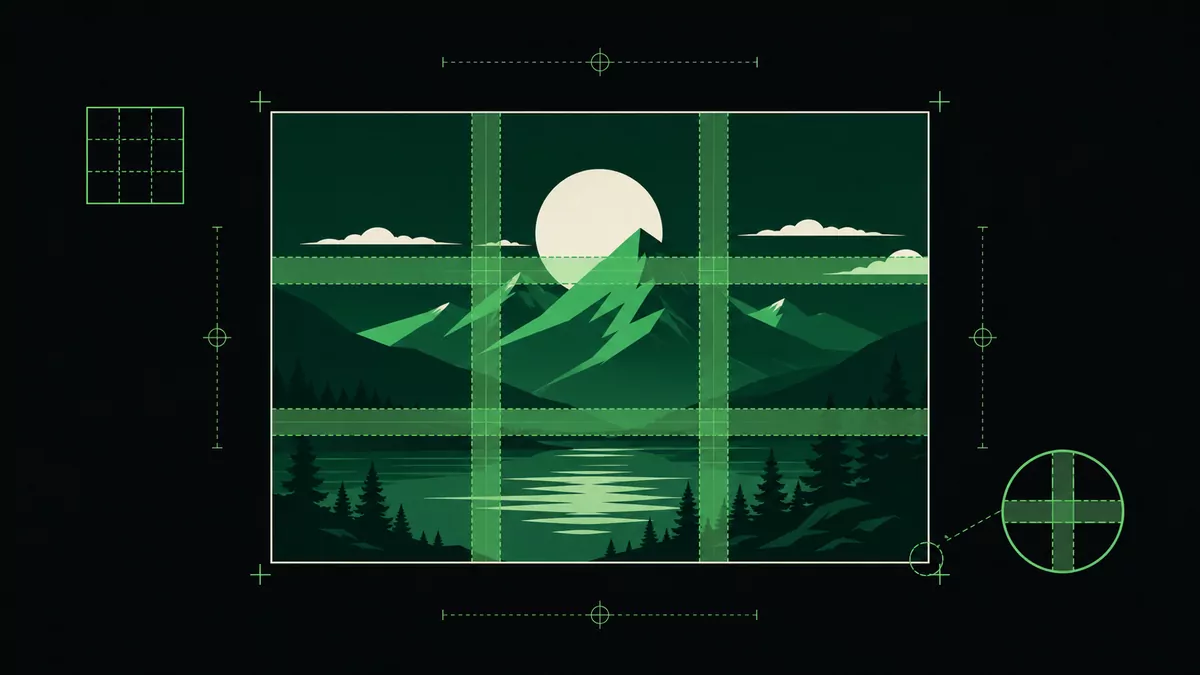
What this does
Most printer drivers can only fit an image onto a single page, so a photo or poster shrinks down to fit. Tiled printing does the opposite: it keeps the image at full size and divides it across a grid of pages. Whether you want to print a picture across multiple pages, print a photo over several sheets, or split a large image into multiple pages to make a wall-size print, the process is the same — tile, print at 100%, and assemble.
Print an image across multiple pages — step by step
- Open your image in Maker Mosaic. It works with photos, pictures, JPGs, PNGs, and screenshots — everything stays in your browser.
- Choose the output size. Pick a paper size (Letter, A4, or A3, portrait or landscape). To print to an exact real-world size, use the Measure tool to set the scale; otherwise just drag the image to the size you want.
- Decide how many pages. As the image gets bigger it automatically spans more sheets — two pages, four pages, or a whole wall of them. The page grid preview shows exactly how it splits.
- Set an overlap margin so a strip of the image repeats on neighbouring pages, making it easy to line up and tape the seams.
- Export as a single multi-page PDF or a ZIP of PNG pages.
- Print at 100% / actual size — turn off "fit to page" or "shrink to fit" so the tiles stay aligned.
- Trim and tape the pages together into one large print.
What you can print this way
- Posters and wall art — turn a small image into a poster-size print across many sheets.
- Photos — print a large photo across multiple pages without a wide-format printer.
- Sewing, cosplay, and quilting patterns — print a PDF pattern to scale across several pages.
- Woodworking, CNC, and craft templates — print a full-size template over multiple sheets of paper.
- Maps, blueprints, and stencils — split a big document across pages and assemble it.
FAQ
How do I print a large image across multiple pages for free?
Open the image in Maker Mosaic, set the size, and export a tiled PDF or set of PNGs. It's free and runs entirely in your browser — no software to download.
Can I print a picture across multiple pages without Photoshop?
Yes. There's nothing to install. Upload the image, tile it, and print — no Photoshop, Illustrator, or poster software needed.
How do I print one image on multiple sheets and tape them together?
Add an overlap margin before exporting. The overlap repeats a strip of the image on adjacent pages so the seams line up cleanly when you trim and tape.
How many pages will my image take?
As many as the size needs. The page grid preview shows the exact layout — two pages, four pages, or a full wall — before you export.
Can I print the image to an exact size?
Yes. Use the Measure tool to calibrate against a known length, then every tiled page prints dimensionally accurate. See printing a photo to scale.
Do you upload my image?
No. All processing happens locally in your browser; nothing is sent to a server.